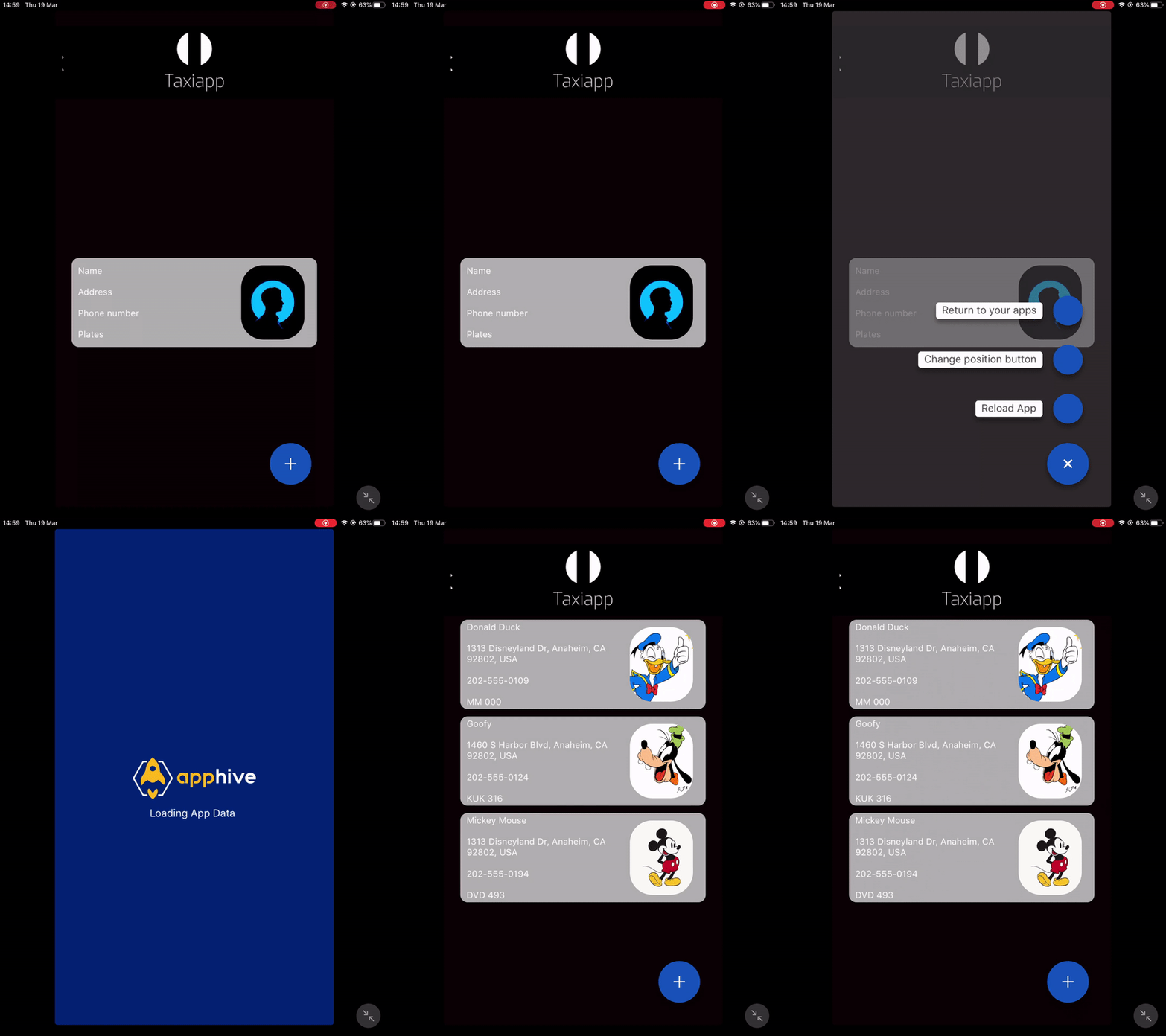
Add Collections To UI
The add collection to UI is a function in the elements functions which allows to create lists of elements and modify using the registers on the database data.
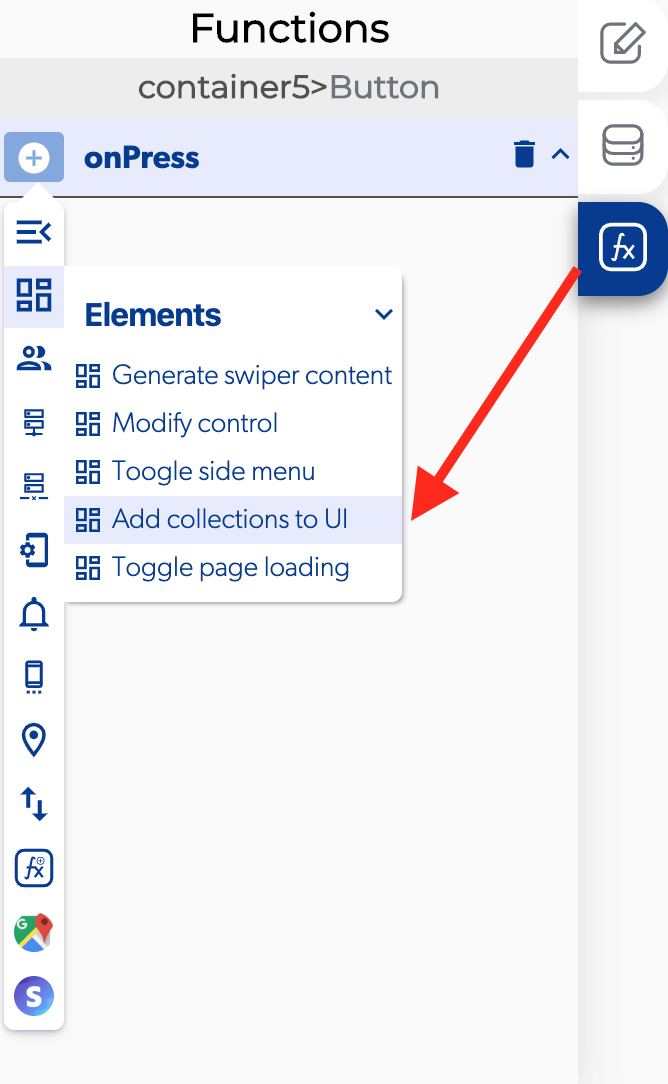
📥 Entry vars 
- Enable horizontal: you can select to see you list in a horizontal way
- List data: select the output for retrieve the list.
- List instructions.
- Modify element: open a modifier on elements in your list.
- List reverse: change the order of the elements on the list.
- Scroll inverted: change the direction of the scroll in the list.
👉 Example. 
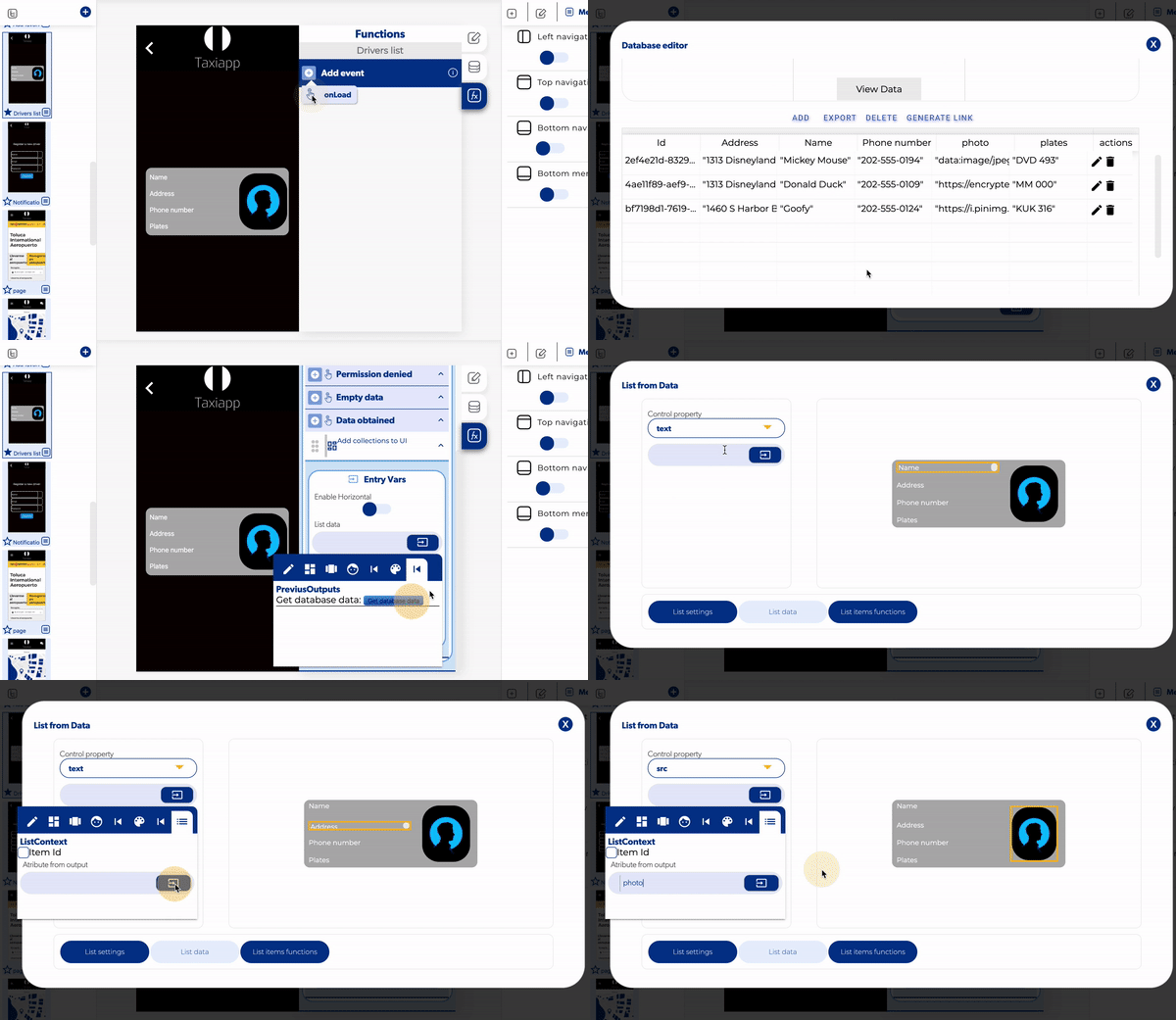
Use the database element.
- Activate the get database data and open database path.
- Add a collection "Driver list"
- Add fields "address, name, phone number, photo and plates"
- Push the button view data
- Press the button Add to add a record to "Driver list".
Add a collection to UI.
- Add a collection to UI in the callback of the get database data when data obtained.
- Select the previous output get database data in the list data.
- Click on the button modify elements.
- Select a container with elements to modify.
- Click on list data and select the element to modify.
- Select a control property to change like text.
- Open the list context and write the name of the element to show in the database.