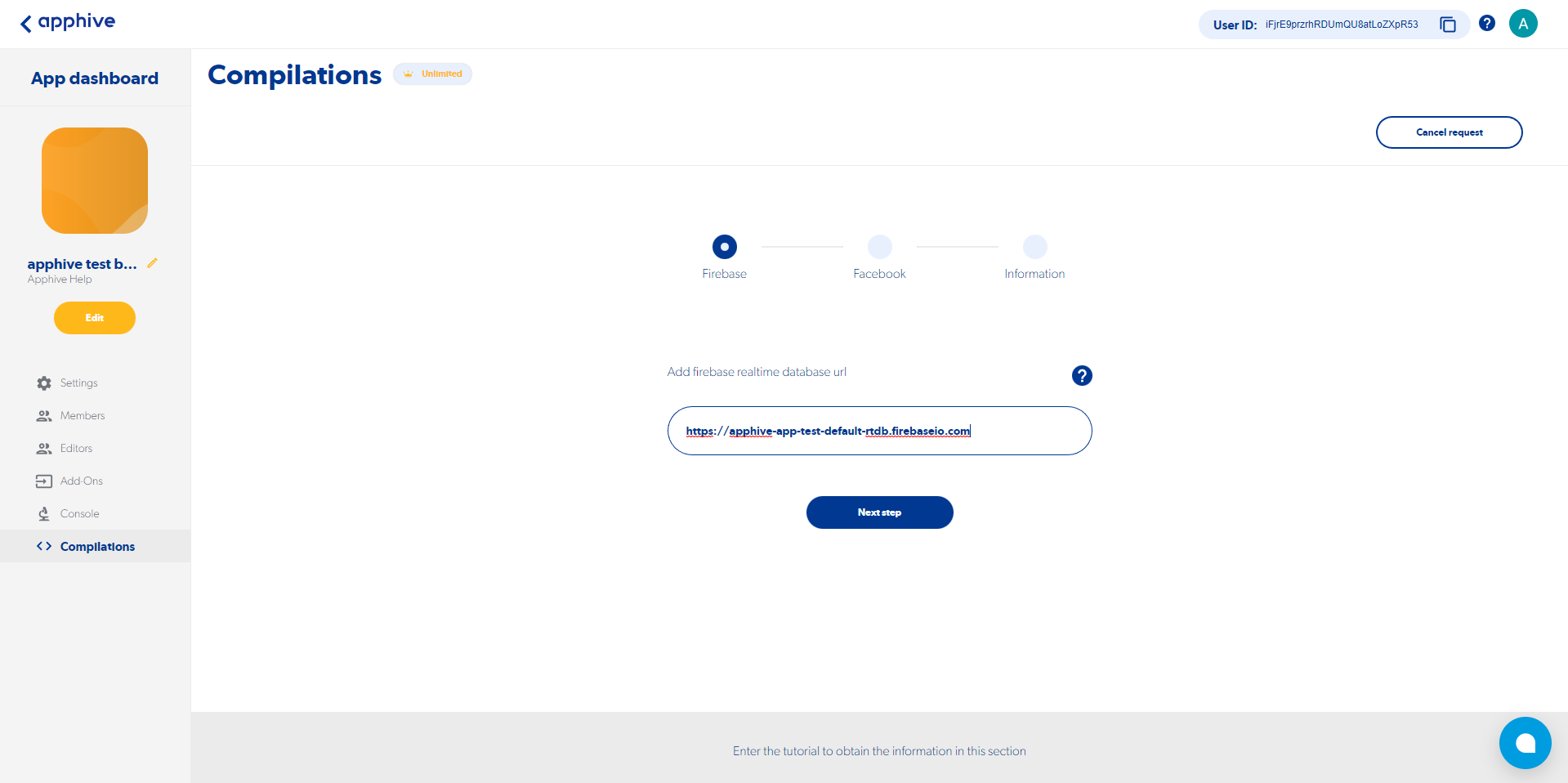
Get the Realtime Database URL
Note
Recovered from the previous Apphive documentation. Some screenshots could not be recovered.
Step 1.- Select Realtime Database and click on “Create a database”
Step 2.- Select Start in locked mode and click on "Enable"
Step 3: Select the option for the area where you want to have your server (recommendation: keep the default option) and click on "Following"
Step 4.- Select the URL as below, it’s important to note this info, as it will be requested to generate your compilation.
Example of a Firebase Realtime Database URL: https://your-project-default-rtdb.firebaseio.com

Step 5: Copy the complete URL of your database and paste it when prompted to do so during the compilation process.